Australian sales teams are constantly being driven to be more efficient, stay organised and convert more leads while reducing overhead. A wide percentage of businesses continue to work with spreadsheets or with disjointed tools, which results in lost follow-ups and inconsistent customer experiences.
In such a scenario, Zoho CRM can prove to be useful. It allows organisations to speed up the sales process, reduce repetitive activities, and gain complete visibility into the entire sales process.
Let's get started on five steps that will help you to build a fully automated sales pipeline for your Australian small and medium business using Zoho CRM.
What You Need Before Getting Started with Zoho CRM Implementation
It's crucial to have the base set up prior to attempting automation. The success of your Zoho CRM setup relies on the understanding of your sales process.
Here’s what you should have ready:
- An easy sales funnel, from start to finish.
- A list showing where leads are from such as social media, referral, etc.
- Stages of sales your team uses in their work
- Daily ops of your sales crew
- Goals for improvement, such as boosting conversions or speeding up responses
Without proper preparation, even with fancy tools. For Zoho CRM Customisation to really work, begin with a solid sales process, goals, and insight into team activities. This sets up the CRM to fuel growth and not make things more complex.
Many Australian SMEs rush into tools without structure. The result is a CRM that gets underused. This is where the properZoho CRM Implementation becomes vital, especially when using a trusted Zoho CRM Partner that can provide knowledge and direction to set up the Zoho CRM.
Building an Automated Sales Pipeline with Zoho CRM
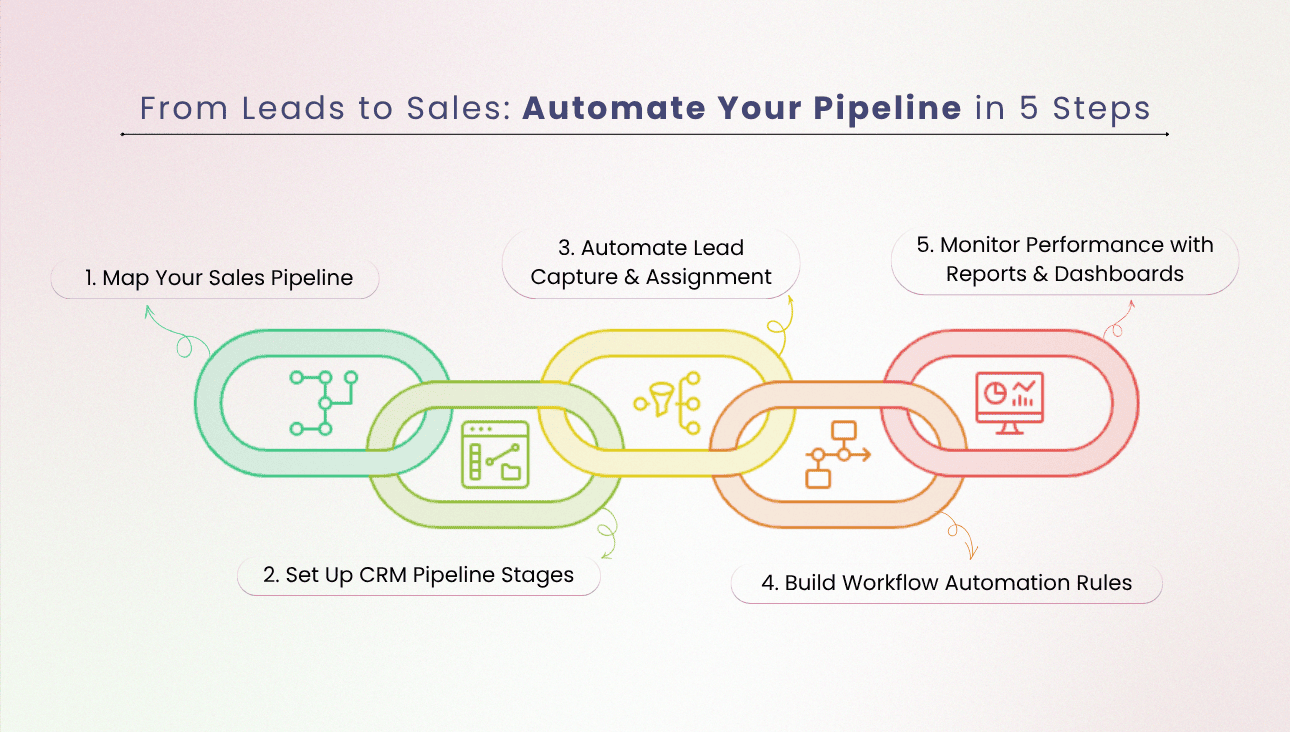
Step 1: Map Your Current Sales Pipeline
Before diving into Zoho CRM, take a moment to map out your current sales pipeline.
Grab a document or a whiteboard and answer the following questions:
- Where do leads come from?
- What is the first meaningful sales action?
- What has to happen for a deal to move forward?
- What are the usual reasons deals stall or die?
- What does “won” actually mean? Is it a signed contract? A paid invoice? Or an implementation booked?
After answering these questions, jot down your pipeline stages in simple terms. Try to keep it easy; most sales teams prefer about 5 to 8 stages. This makes it simpler and more effective than having way too many steps.
Here is an example of a typical B2B pipeline.
- New Enquiry
- Contacted
- Qualified
- Demo / Discovery Booked
- Proposal Sent
- Negotiation
- Closed Won & Lost
But don't just copy and paste this template. If you're a company that usually sells on the first call, you may not require half of these stages. On the other hand, if you have a long deal cycle, you can include additional phases to represent legal review, procurement or technical review.
Also, it's essential to establish the entry and exit conditions for every stage. Record these specifically. When negotiation is happening, it means that the decision-maker is engaged and objections are being addressed. This clears up any confusion that can be the death knell to a CRM success.
Step 2: Configure Pipeline Stages with Zoho CRM
In Zoho CRM, pipeline stages are usually found in the Deals module, which some setups call Potentials. You can create a pipeline, define its stages, and even set up multiple pipelines for different products.
Here is the approach I prefer:
- Start with one primary pipeline that covers 80% of deals.
- Keep stage names short, action-based, and consistent.
- Add stage probability only if it reflects reality, not optimism.
A few configuration tips that save time later
- Create required fields by stage where possible. If a deal hits “Proposal Sent”, maybe you require “Proposal value” and “Expected close date”.
- Use blueprints if you need stricter control. Blueprints let you enforce transitions and require fields or actions before moving stages. Great for consistency, but don’t overlock it too early.
- Standardise “Closed Lost” reasons. Create a picklist. Not free text. You want reporting later.
You are basically designing the pipeline so that the CRM gently pushes people into good behaviour, instead of begging them to update stuff.
Step 3: Automate Lead Capture and Assignment
This is where Zoho starts earning its keep.
Lead capture usually comes from:
- Website forms
- Landing pages
- Ads and lead forms
- Manual entry (hopefully less and less)
- Imports from events or webinars
Lead capture essentials:
Make sure every lead has a source field captured (web, referral, partner, paid search, LinkedIn, event, etc.).
Capture what actually matters for qualification. Not every form field under the sun, because conversion rates drop.
Then you set up lead assignment rules. Common ways to assign:
- Round robin across a sales team
- Territory-based (country, region, postcode)
- Product based (different reps for different product lines)
- Lead source based (partners go to partner manager)
What good lead assignment automation looks like
- Lead is created
- Owner is assigned instantly
- A task is created automatically (call within 5 minutes, or email within 1 hour)
Step 4: Create Workflow Automation Rules
Zoho CRM workflows are where most teams either do something brilliant or create chaos.
A workflow rule should be:
- Triggered by a specific event (create, edit, stage change, time-based)
- Do one or a few clear actions
- Easy to understand a month later
Start with 5 to 10 core workflows that stop leakage. Then expand once the team is stable.
High-impact workflow examples:
New lead follow-up task
- Trigger: Lead created
Condition: Lead source is Web or paid.
Action: Create task for owner “Call within 15 minutes”
Optional: Send email alert to owner
- No response escalation
Trigger: time-based
Condition: Lead status is 'New' and no activity for 24 hours
Action: Notify sales manager or reassign
- Deal stage change task creation
Trigger: Deal stage updated to “Proposal Sent”
Action: Create task “Follow up in 2 days”
Action: Update a field “Proposal sent date” to today
- Closed Lost hygiene
Trigger: Deal stage updated to Closed Lost
Condition: Closed lost reason is empty
Action: Make field mandatory via Blueprint, or block transition until filled
- Post-sale handover
Trigger: Deal stage updated to Closed Won
Action: Create onboarding task for implementation team
Action: Create a new record in a custom module, if needed
Action: Notify finance
Keep your workflows named properly. Not “Workflow Rule 7”. Use names like “Lead: create follow-up task (web leads)”. When you have 40 rules later, you will survive.
Step 5: Track Performance with Reports and Dashboards
If the pipeline is set up well, reporting becomes almost unfairly easy. But only if you decide what you want to measure.
A simple starting set:
- Sales pipeline visibility
Deals by stage (count and value)
Deals created this week / month
Weighted pipeline by expected close date
- Conversion Rates
Lead to qualified conversion rate
Qualified to proposal conversion rate
Proposal to won conversion rate
- Speed and activity
Average time in stage
Lead response time (time from lead created to first activity)
Activity volume per rep (calls, emails, meetings)
- Loss analysis
Closed lost reasons over time
Competitor field tracking (if relevant)
Deal size vs win rate
Build one dashboard for sales reps and one for management. Reps need a “today view”. Tasks, deals needing follow-up, and leads not contacted. Management needs trends and bottlenecks. And yeah, keep it simple at first. A dashboard with 18 charts looks impressive and gets ignored. A dashboard with 6 charts that people actually use is gold.
Zoho CRM has a lot going on, but these are the features that tend to matter most when you are building an automated sales pipeline.
Key Zoho CRM Features That Support Sales Automation
Depending on your edition and setup, Zia can help with predictions, suggestions, and anomaly detection. Useful for some teams, not essential for a clean first implementation. I would treat it as phase two.
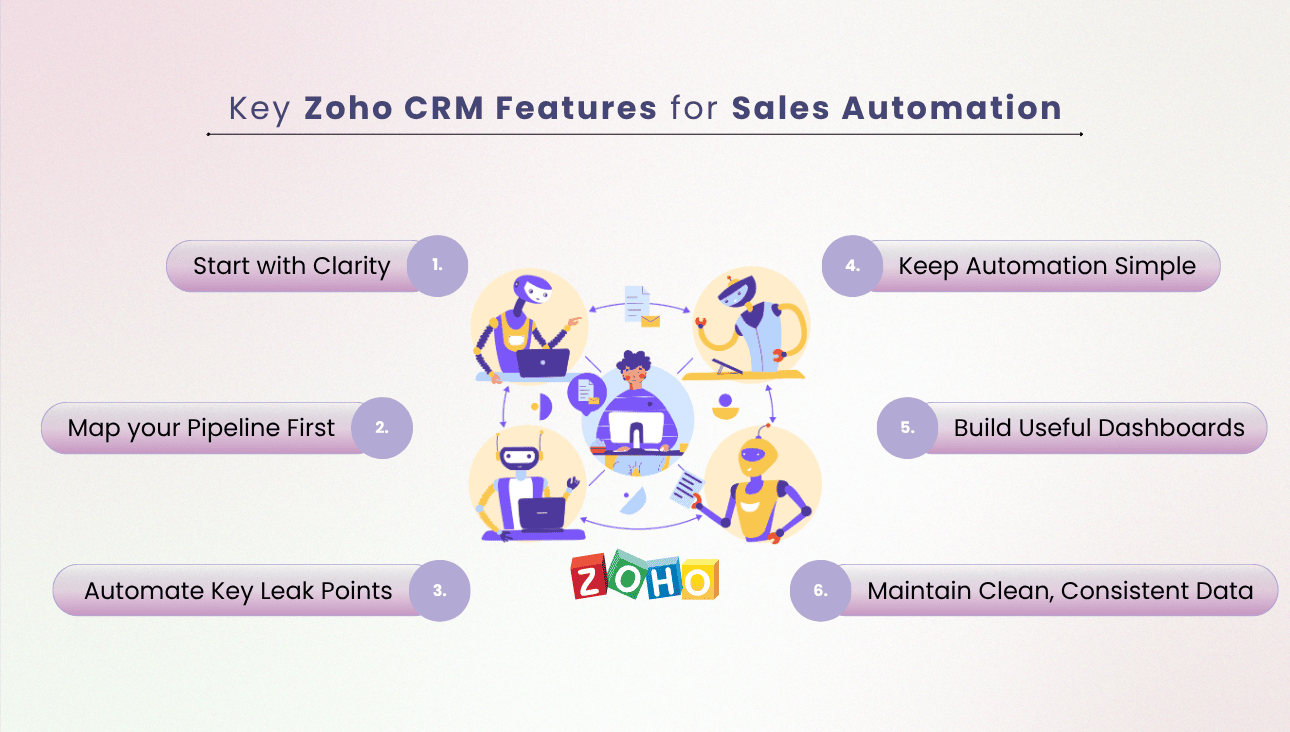
- Start your Zoho CRM Implementation with clarity, not configuration. Define the 90-day goal and pick a single process owner.
- Map your real sales pipeline first, then build it in Zoho CRM with clear stage definitions and entry and exit criteria.
- Automate the leak points: lead capture, lead assignment, follow-ups, and stage-based task creation.
- Keep workflow automation rules small, readable, and focused. Avoid building a complicated maze on day one.
- Build dashboards people will actually use: a rep dashboard for daily action and a management dashboard for bottlenecks and conversion.
- If you do one thing right, make it this: consistent stages and clean data. Automation and reporting both depend on it.
That is the foundation. Once it is in place, Zoho CRM stops being “another tool we log into” and starts acting like a quiet sales assistant in the background. The kind that never forgets to follow up. And honestly, that is where the money is.
Key Takeaways
Using Zoho CRM for sales automation is more than just a technology. It's all about establishing a defined and repeatable structure that will enable your sales team to be more effective.
To summarise:
- Have a sales process from the beginning of setup.
- Adjust the stages to match actual business stages
- Automate lead capturing and assigning and save time.
- Ensure follow-ups are consistent with workflows.
- Monitor and measure performance on dashboards – make better decisions.
However, with correct deployment, the benefits from Zoho CRM will include increased responsiveness, higher conversion rates, and smoother sales processes without adding unnecessary complexity for Australian businesses. When your setup is properly planned and maintained with Zoho CRM Support and Maintenance, your CRM is not merely a database but a long-term growth engine as well.
Ready to get more from your CRM? Flexbox Digital offers expert Zoho CRM Implementation services that help Australian businesses streamline operations and create a more efficient sales process.