01
Organization-wide templates
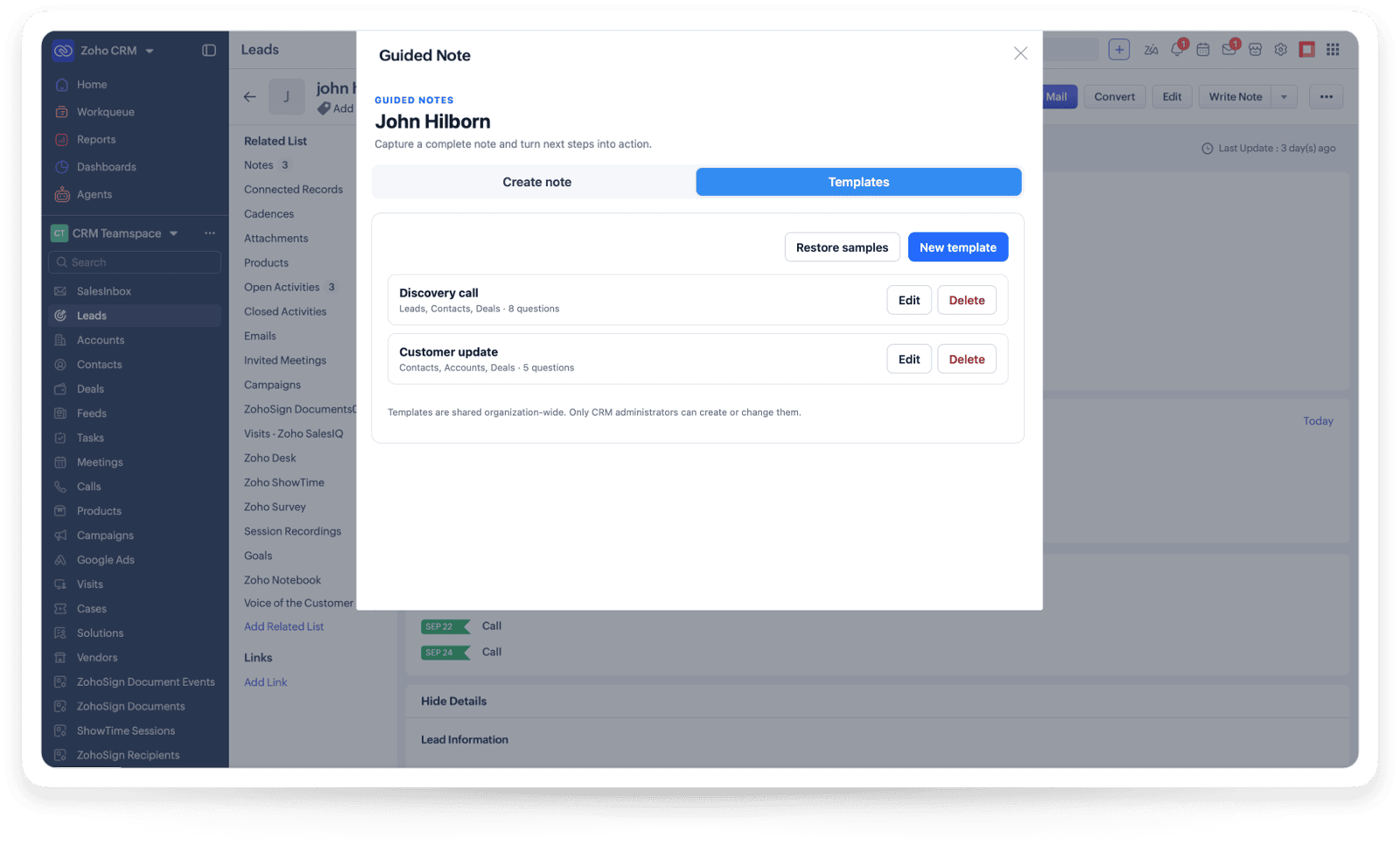
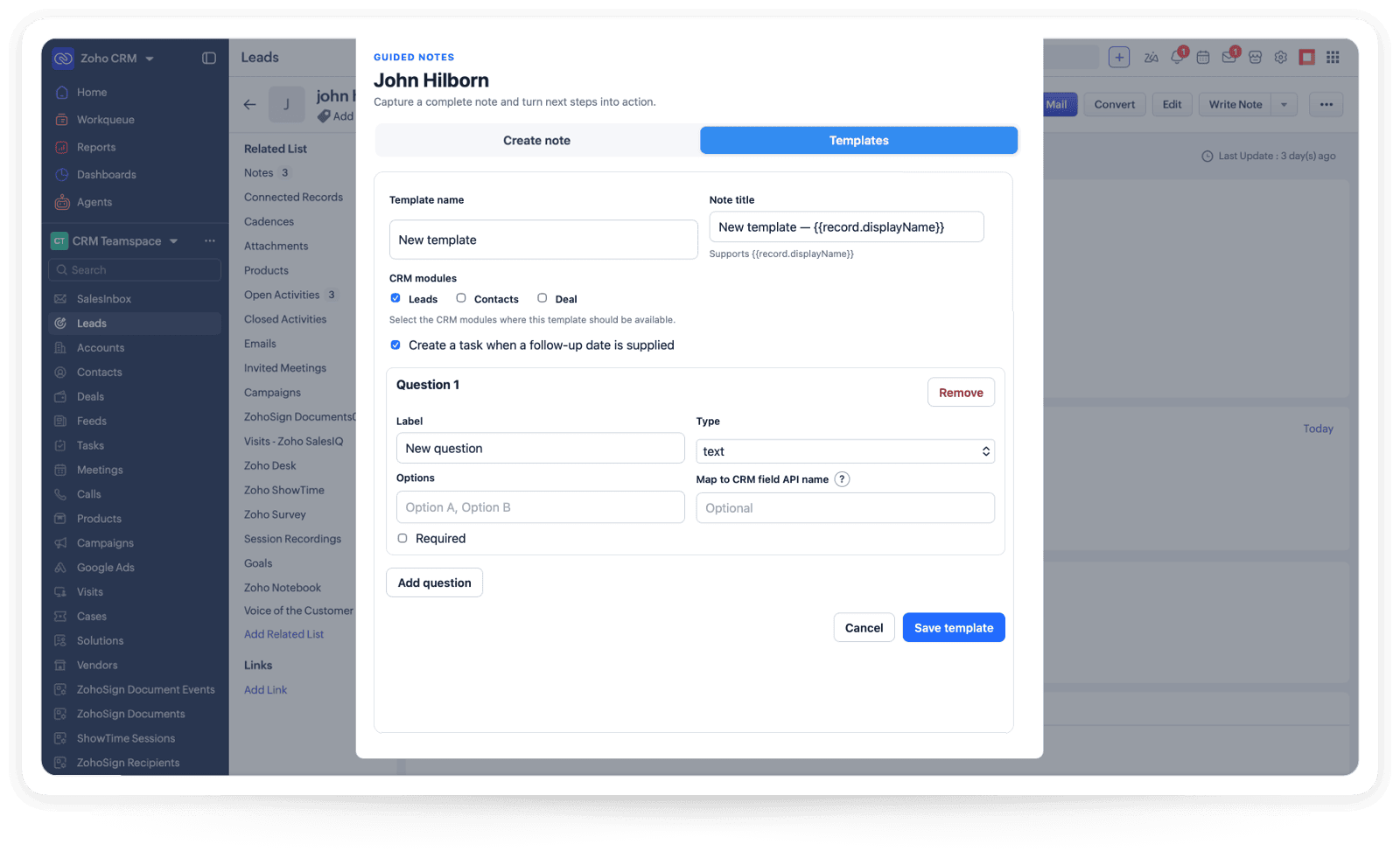
Administrators create and maintain shared playbooks for the entire CRM team.

Create complete, consistent and actionable CRM notes with reusable guided templates—without leaving Zoho CRM.
For Leads, Contacts, Accounts and Deals · Organization-wide pricing
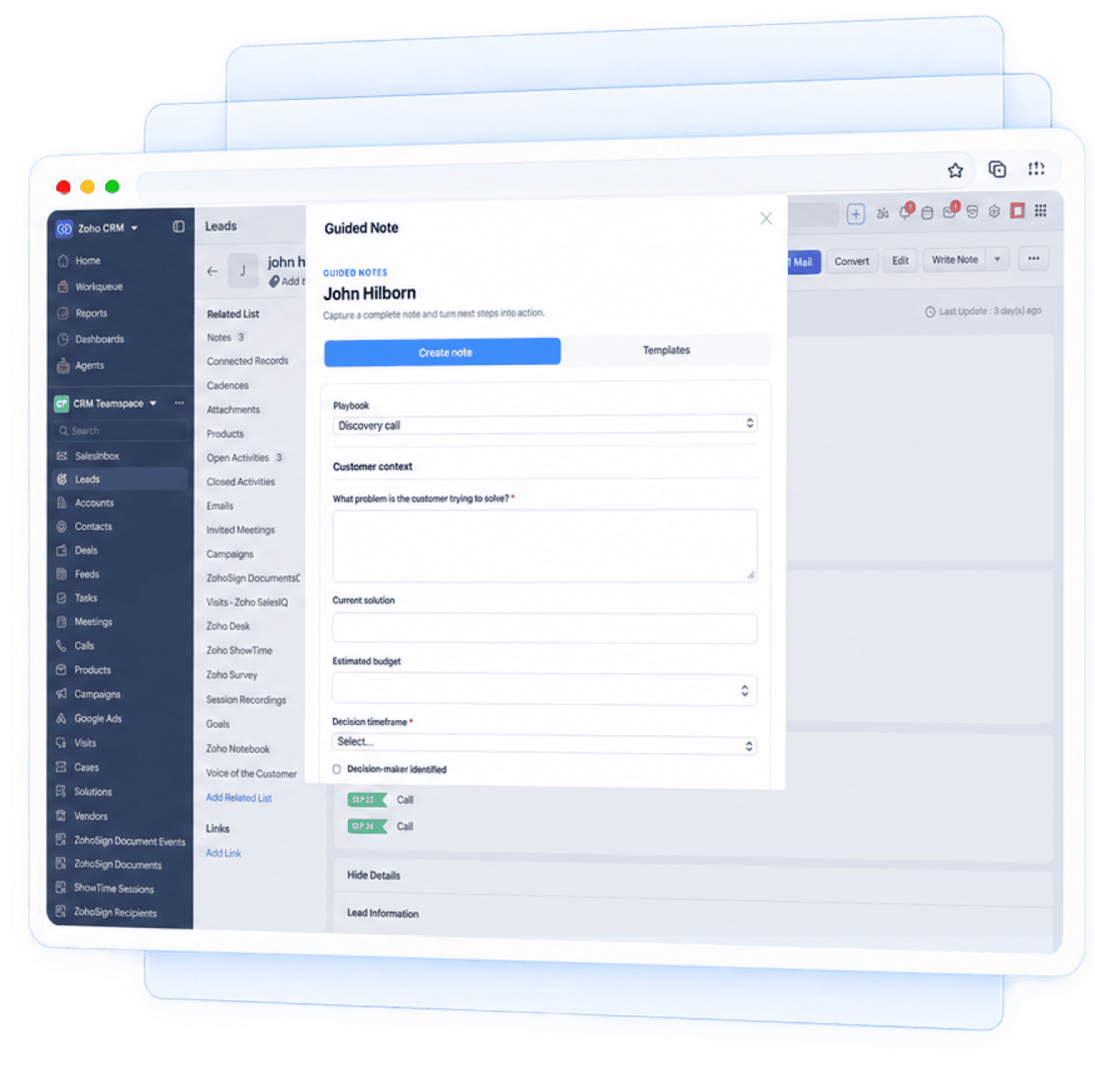
Replace incomplete free-form notes with a repeatable framework that guides users through the right questions and next steps.
Administrators create and maintain shared playbooks for the entire CRM team.
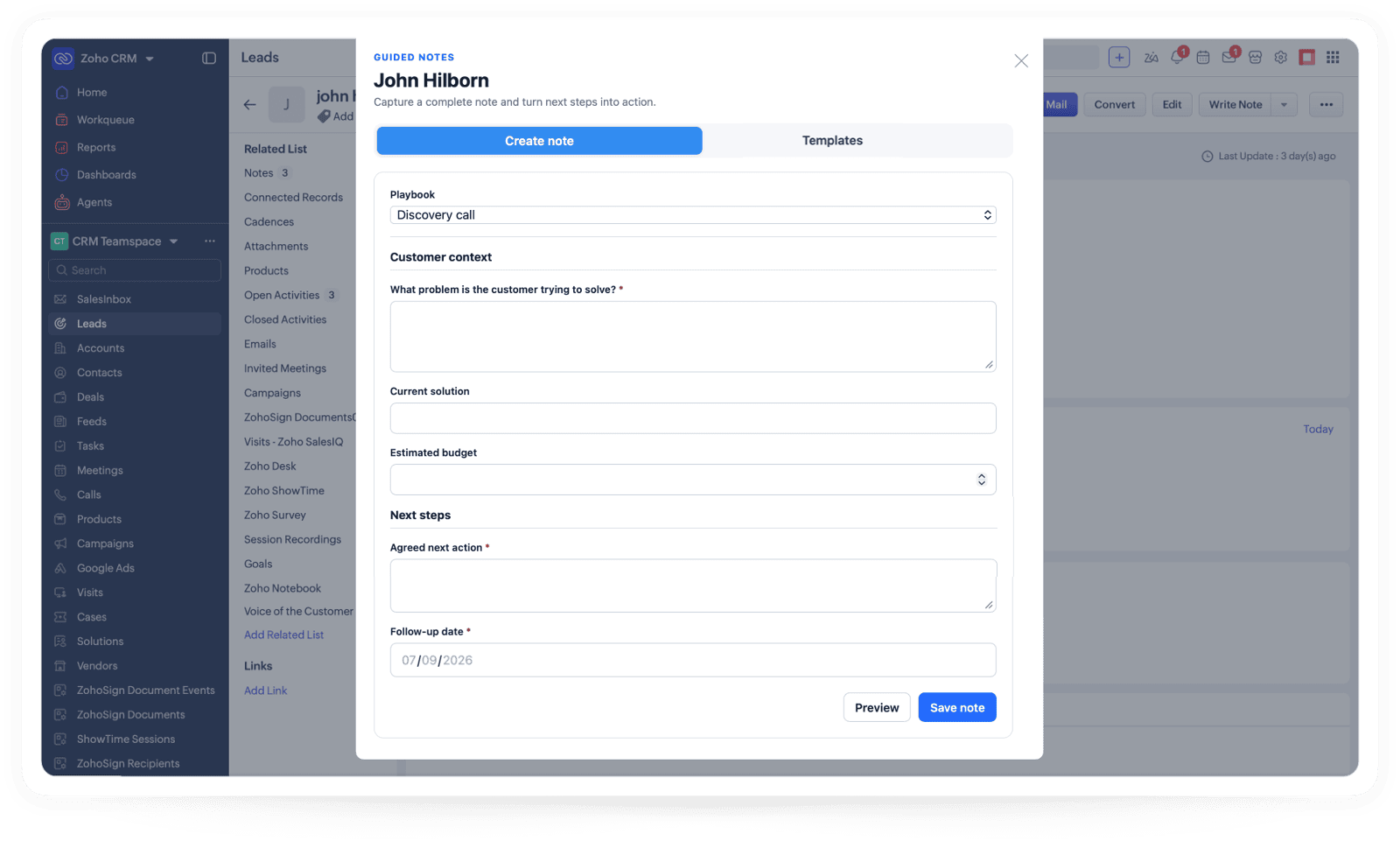
Use required questions and suitable response types to keep information complete.
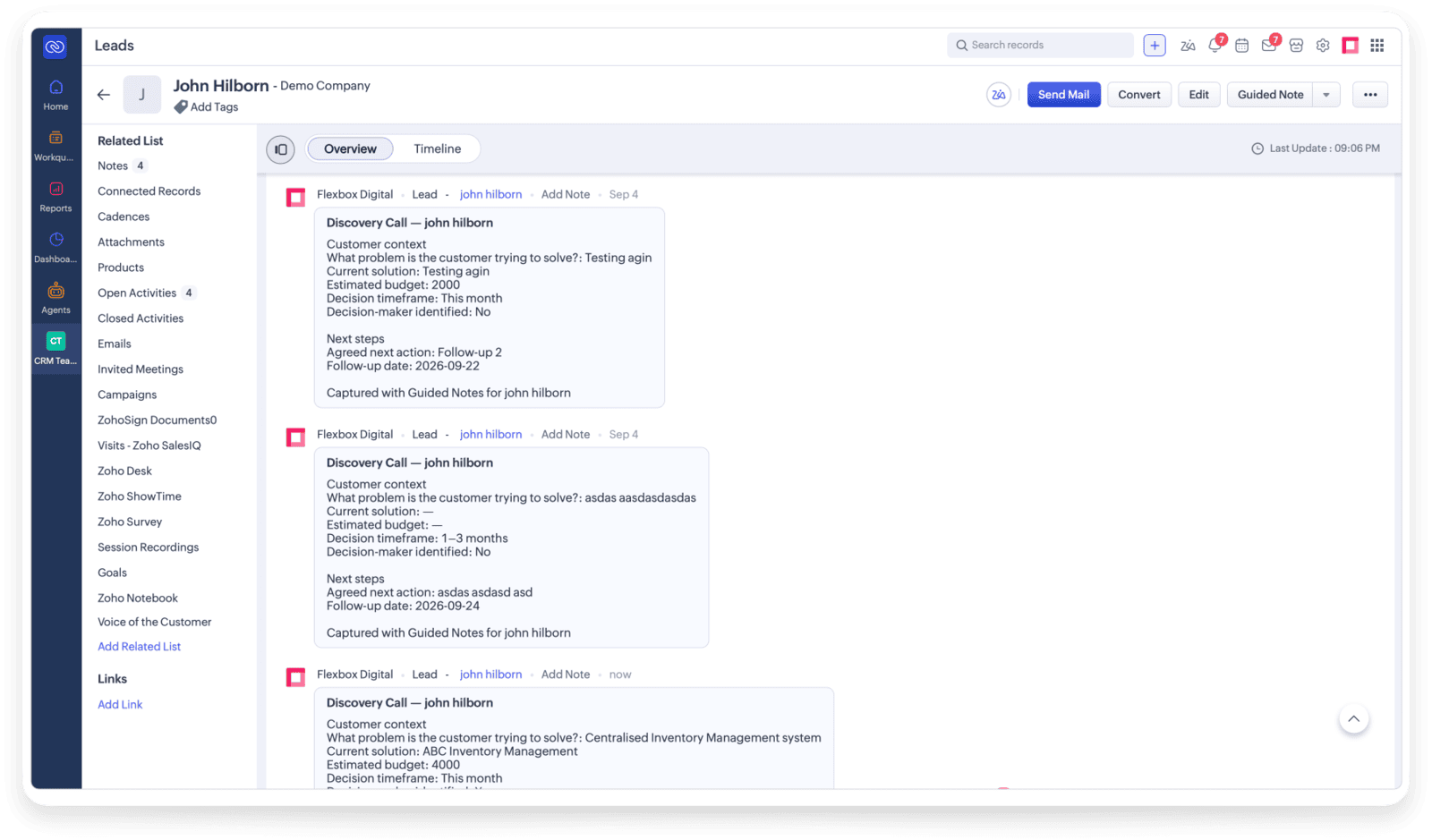
Preview and save a clean, formatted note directly to the current CRM record.
Map important answers to compatible CRM fields using their API names.
Turn the agreed next action and date into a Zoho CRM task.
Use guided templates with Leads, Contacts, Accounts and Deals.
Open Guided Note from a CRM record and choose the right playbook.
Capture customer context, decisions and next steps.
Review the formatted output before it is added to the record.
Create the CRM note, update mapped fields and add a task.
Everything administrators and CRM users need to get started.
No. Guided Notes is priced per Zoho CRM organization.
Yes. Administrators can create organization-wide templates for selected CRM modules.
They are saved to the Notes related list of the current Zoho CRM record.
Yes. Administrators can map a question to a compatible field using its CRM API name.
Check the field API name, module, data-type compatibility and the user's field-edit permission.
Give your team a consistent way to capture customer context, decisions and next actions.

Copyright © Flexbox Digital Pty Ltd. Australia